
AI PHOTOGRAPHY / ANALYSIS
Lightroom’s Prompt to Edit: treat the result as a new image
Adobe’s early-access desktop feature brings written instructions into the photo workflow. Keep the original, define the change and review what the model invents.
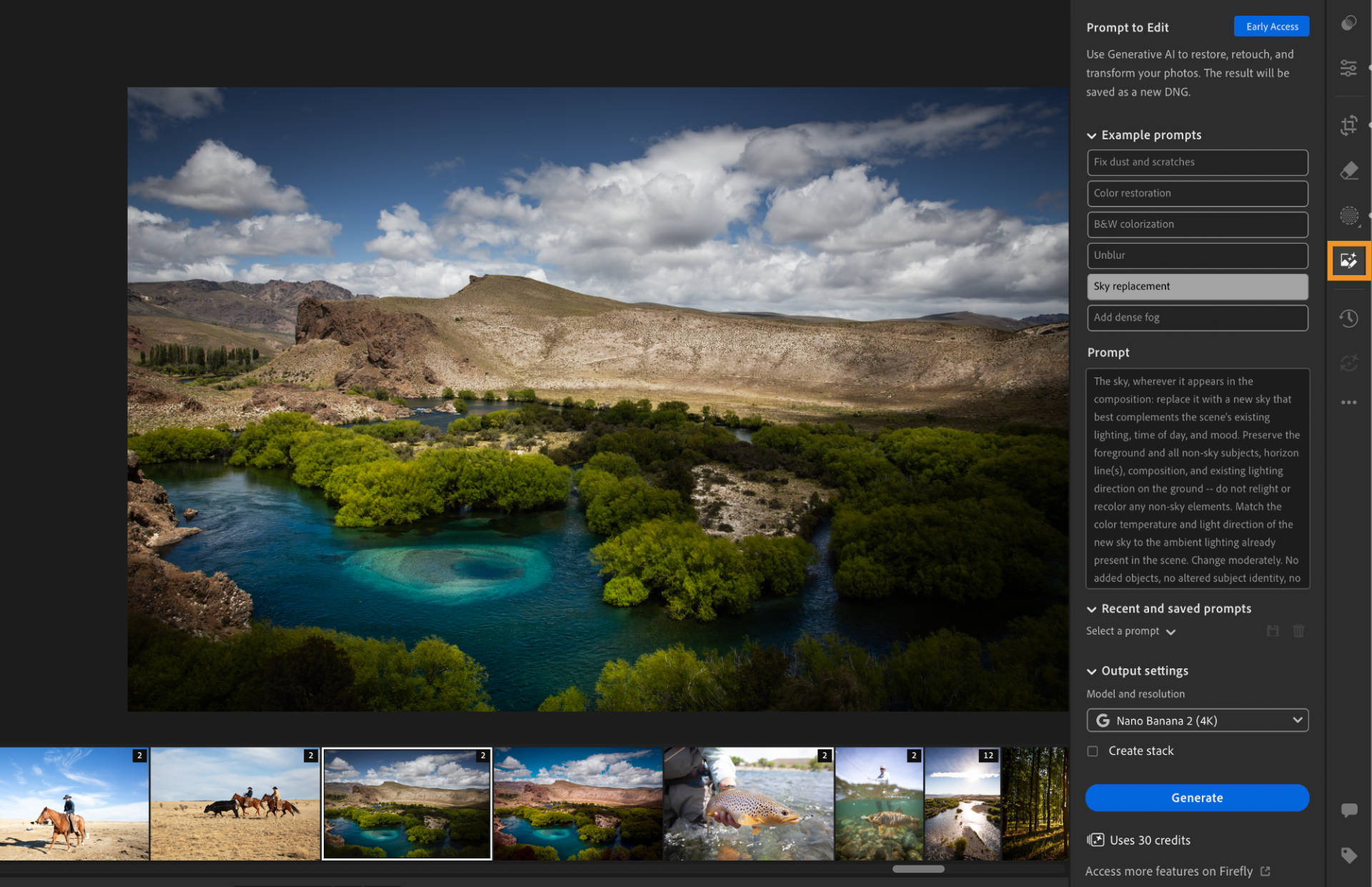
Adobe announced Lightroom 9.6 on 29 September with Prompt to Edit, a feature for describing photo changes in words or starting from photographer-focused example prompts. Adobe’s documentation identifies it as early access in Lightroom desktop. For photographers, the useful question is where that capability belongs in an existing edit, rather than how dramatic a transformation it can produce. [1] [2]
What Adobe has actually introduced
The documented process starts with a photo in detail view. Open Prompt to Edit, choose or write instructions, and generate a result. Adobe lists Nano Banana 2 output options at 2K and 4K. The generated image is saved as a DNG beside the original or within a stack; Adobe notes that stacks are currently supported only in the Cloud. Saved prompts can be reused. [2]
Those details matter. This produces a separate generated image, so treat it as a new version to assess. An output saved as DNG is not, by itself, evidence that missing sensor detail has been recovered. Our workflow advice below is editorial analysis, based on Adobe’s documented process, rather than a hands-on quality assessment.
Give the edit one clear job
Begin with a photograph you can compare against the result. Decide whether the job is restoration, retouching or a deliberate visual transformation. Write the requested change and the boundaries together: what may move, what must remain recognisable, and which textures matter. A request to remove damage from an old photograph needs a different review standard from an imaginative sky replacement.
Try one meaningful change at a time. Keep a note of the prompt beside the selected version, and resist combining restoration, lighting, wardrobe and background changes in a first attempt. Smaller requests make it easier to judge whether a revision solved the problem or introduced another.
Review the photograph, not just the effect
Compare the original and generated version at the same scale. Inspect faces, hands, lettering, fabric patterns and object edges. Look for changes outside the requested area. Then step back and judge light, perspective and the image’s intended purpose. A pleasing result can still fail a client’s brief if it changes a recognisable detail. Before delivery, describe any substantial generated changes plainly so the recipient can judge the image in the right context.
For a first exercise, take one non-critical image, define a single edit and write three things the result must preserve. Generate, compare and record the decision to keep or reject it. That habit makes prompt-based editing a controlled part of the workflow. Speed is useful when the photographer can still explain why the final image is right.
Sources
- Adobe Community: Lightroom 9.6 announcement · Published 2026-09-29; checked 2 October 2026.
- Adobe Help: Edit photos using prompts (updated 29 September) · Published 2026-09-29; checked 2 October 2026.