AI PRESENTATIONS & VIDEO / ANALYSIS
Gemini Notebook adds a review step: fix the story before it renders
Google’s new co-creation flow lets you steer slide outlines and video producer notes before generation. Use the pause to check the explanation, evidence and sequence.
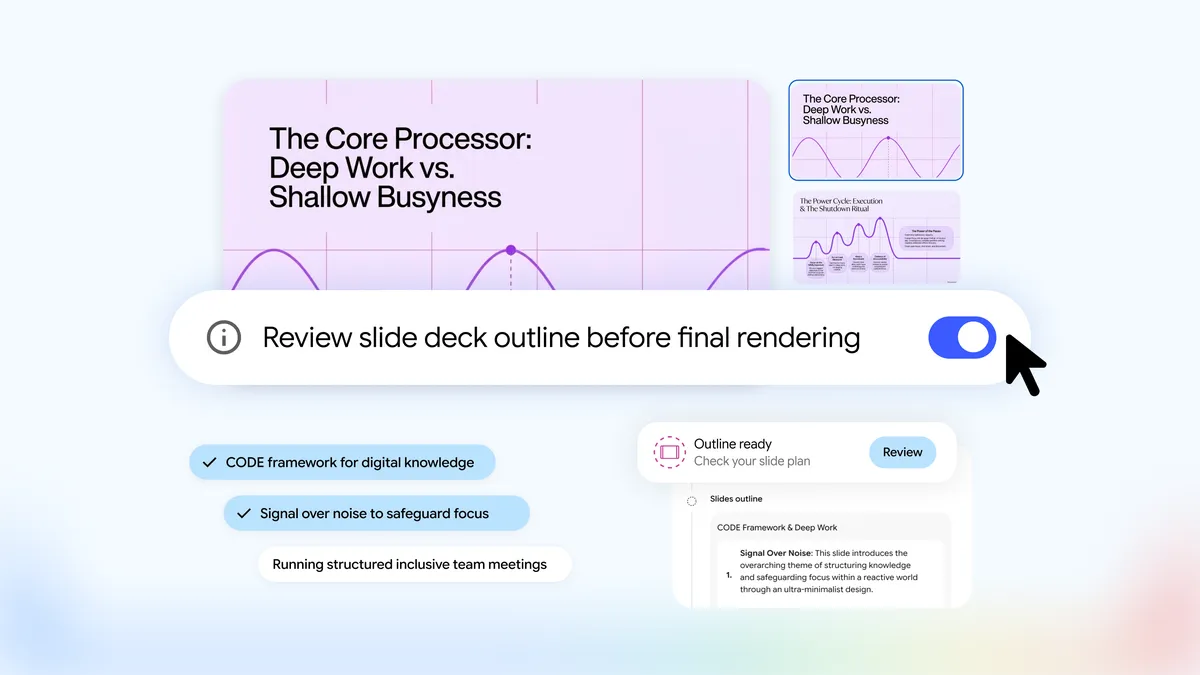
Google announced more creative control for Gemini Notebook’s Slide Decks and Video Overviews on 19 October 2026. The update introduces a guided creation flow based on your sources, with an optional review before rendering. For a creator turning research into a lesson or presentation, that pause offers a useful place to examine the story while it is still a plan. WASSAI has not independently tested the feature. [1]
Find the review point
Google says you can begin in chat, ask for slides or a video overview, confirm suggested topics, then guide content, visual style and format. With the Review toggle enabled, the studio panel offers “Review outline notes” for slides or “Review producer notes” for video. You can give feedback before selecting “Proceed.” The company says these capabilities are rolling out globally to all Gemini Notebook users over the coming week. [1]
Treat that rollout wording carefully: an announcement does not establish that your account already shows the controls. When they appear, start with a short artifact from a small set of sources you understand. Choose one audience and one outcome, such as explaining why a subtitle drifts out of sync and what the learner should check first.
Review the argument before the styling
Read the outline as a sequence of claims. Ask what each slide or scene contributes, which source supports it and whether the audience has enough context to understand the next step. Mark missing prerequisites, unsupported conclusions and repeated points. Keep a separate reference note so you can compare the proposed explanation with the original material instead of relying on a fluent summary.
Give feedback that describes the change you need. For example: “Explain the difference between a transcript and timed subtitles before demonstrating the export. Use the supplied example to show the timing problem. End with the three checks the learner can repeat.” This is an example brief, not a claim that the system will follow every instruction accurately. Review the revised plan again.
Keep a final check after generation
Once the sequence works, specify the visual job of each part: define a term, compare two states or show a procedure. Avoid asking an image to carry a precise fact that needs text or a real demonstration. Keep the desired tone, terminology and level of detail consistent across the plan, especially when your audience is new to the subject.
Inspect the rendered artifact against both the approved plan and your sources. Check names, numbers, captions, visual meaning and transitions. Record anything that still needs correction before sharing it. The review step is an opportunity to make decisions earlier; the finished output still needs your judgement. A useful first experiment measures whether this extra planning produces a clearer explanation with fewer avoidable revisions.
Sources
- Google: How to shape your slides and videos with Gemini Notebook · Published 2026-10-19; checked 20 October 2026.