
AI LEARNING / ANALYSIS
Gemini Notebook sites: turn research into a lesson, then check what sharing reveals
Google’s new source-based interactive sites can help learners explore a topic. The useful test is whether the lesson stays accurate and whether every shared source is safe to expose.
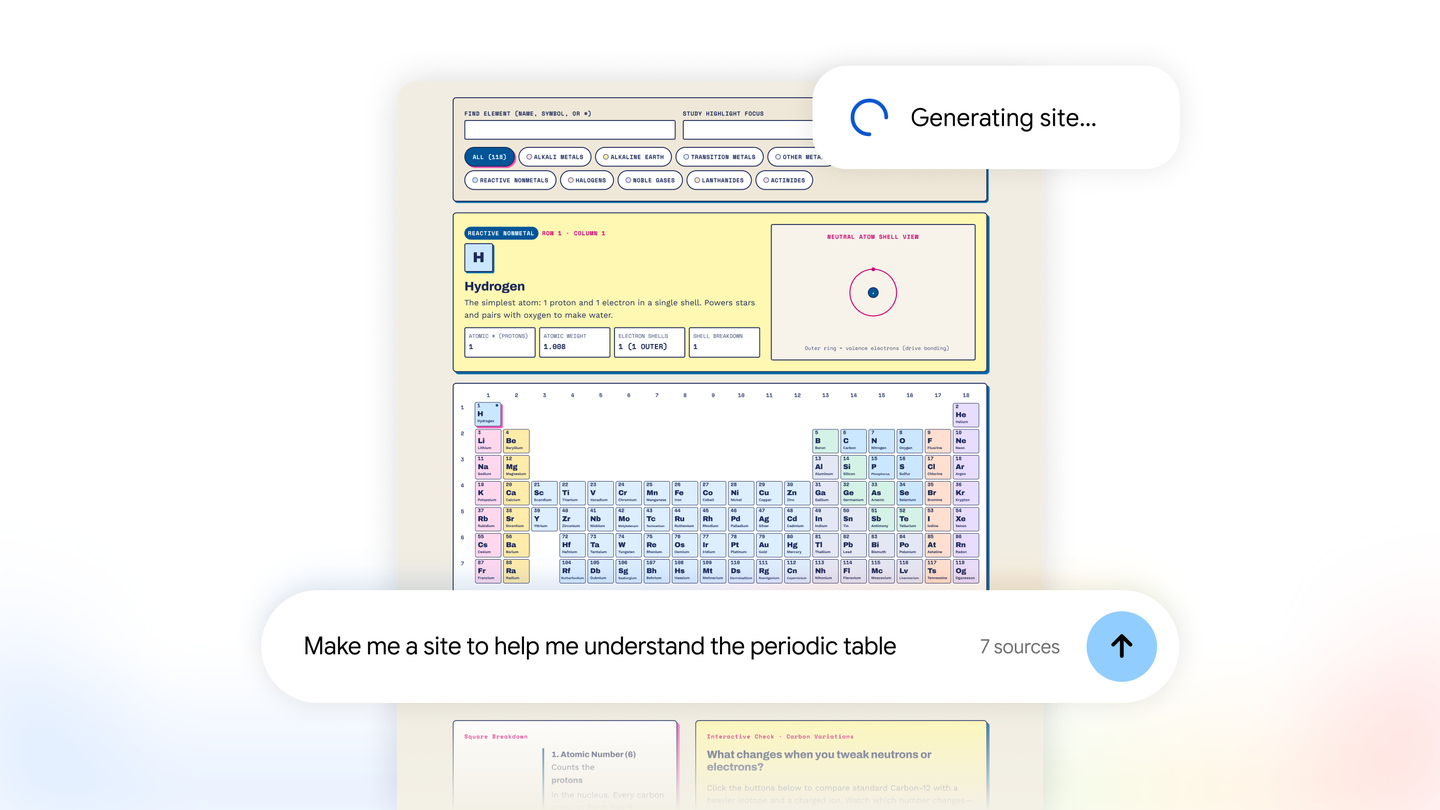
Google announced on 16 November 2026 that Gemini Notebook can turn sources into interactive sites. You can ask it to “make me a site” for a visual explainer, dashboard or tracker, then open the result in a new tab. The feature is rolling out globally on the web for users aged 18 and over, including Google Workspace subscribers; mobile support is still to come. This is a new way to explore material already in a notebook, not evidence that the generated lesson is correct. WASSAI has not independently tested the feature. [1]
Try a small, answerable lesson
Start with three public, reliable sources on one bounded topic, such as the stages of a historical event or the parts of a camera exposure triangle. Make a notebook and ask for an interactive site that lets a learner explore the concepts in order. Give it a clear audience and a short list of questions the site should answer. Google’s Help page says the request goes in the notebook Chat panel, and the result appears in Studio. You need edit access to generate or delete a site, and usage limits apply. [2]
Open every interactive element as a learner would. Check dates, labels, definitions and any numbers against the original sources. Test whether a misleading click path or a confusing graphic changes the meaning. If a claim is unsupported, revise the source set or the request before sharing. Keep a brief correction list so you can distinguish an attractive interface from a useful explanation. The value of the site is in helping someone understand a source, not in replacing the source.
Check the access boundary before sending a link
Google’s sharing instructions say the recipient must have access to the full notebook before a site link will work. That matters if your notebook also contains private notes, client files or drafts you did not intend to distribute. For a public lesson, make a separate notebook containing only approved sources. Review its access settings, then test the link from an account with the same permissions as your intended reader. Do not assume an artifact link hides the rest of the notebook. [2]
The Help page also says shared-site users see only their own inputs, including the owner, while a site reopens with a user’s previous selections and inputs. This is useful for a personal study path, but it is not a shared progress dashboard. If you need to collect or compare learners’ answers, use a separate tool designed for that purpose and get consent before collecting their data. For a simple handout, Google documents a download option as well as a share link. [2]
Publish only after a reader test
Ask one person unfamiliar with the topic to use the site and explain three ideas back to you. Note where they hesitate, which source they need to inspect and whether the interaction clarifies or distracts. Fix the content first, then the layout. A source-based interactive lesson earns its place when it makes the evidence easier to examine without making the notebook’s access or accuracy harder to control.
Sources
- Google: Transform notes, research, and sources into interactive sites with Gemini Notebook · Published 2026-11-16; checked 17 November 2026.
- Gemini Notebook Help: Generate sites in Gemini Notebook · Undated; checked 17 November 2026.