
AI CREATIVE WORKFLOWS / ANALYSIS
Firefly Graph’s AI Assistant: build one repeatable creative workflow, then inspect every node
Adobe’s Graph assistant can assemble a creative process from a prompt. A small, controlled test reveals where the time savings end and human review begins.
Adobe’s 10 November 2026 Firefly update highlights Graph, a beta canvas for reusable creative workflows. Its AI Assistant can create or modify connected nodes from a natural-language request. For a small team, the appeal is a process repeated across campaign variations. Adobe’s own instructions also draw a firm boundary: the assistant cannot run the workflow or add and interpret your input assets. You must inspect the graph, supply files and start execution yourself. WASSAI has not independently tested the beta. [1] [2]
Start with a three-step brief
Choose one low-risk task, such as making three background options for a fictional product photo. Write down the fixed elements: the product silhouette, label text and brand colors. Then ask the assistant to build a graph that takes your approved image and a text prompt, generates variations and sends the results to an output node. This is a test brief, not a claim that Graph will preserve those details automatically. Use a synthetic or rights-cleared image so the first trial does not depend on permission you have not obtained.
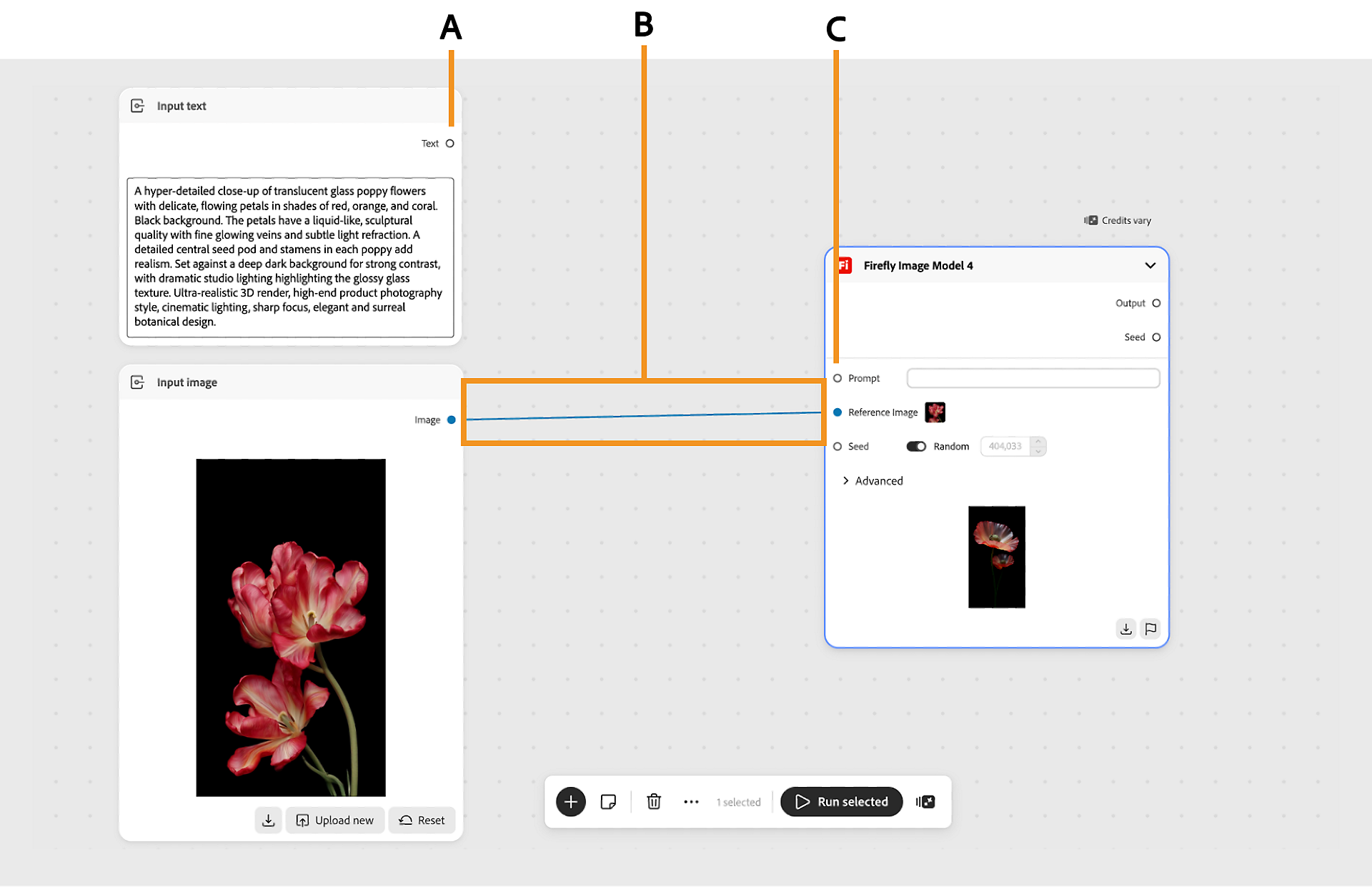
Adobe documents input, intermediate and output nodes, with connections passing data between them. It also offers a blank canvas, templates and an assistant entry point. Before running anything, trace the path from each input to each output. Check that the image and prompt feed the intended model, that port types match and that the final asset can be downloaded. A plausible-looking canvas is not proof that the graph does the task you specified. [3]
Review the cost and the output
Adobe says the assistant may ask clarifying questions and recommends reviewing generated nodes, connections and settings before selecting Run or Run all. Some generative actions consume credits; the interface provides a credits-cost indicator. For a fair pilot, record the graph setup time, number of runs and credit use. Compare the three results against the fixed elements in your brief. Zoom in on text, edges and product shape, then reject variations that change the item being sold or imply a feature it does not have. [2] [3]
The assistant cannot inspect the content of an uploaded asset, so do not ask it to certify factual accuracy, rights or brand compliance. Keep a human check before any public export. If the workflow produces useful variants, save the graph and run it on a second, different approved image. That second run is the real test of reuse: note which settings remain stable, which require manual changes and whether the outputs still meet the brief. [2] [4]
Share the process, not just the picture
Graph can be shared with viewer or editor access. Adobe says a viewer can run and change a copy but cannot save changes to the original; an editor can edit the shared graph, while simultaneous real-time collaboration is not supported. For a small team, give a reviewer the graph, the brief and a short list of rejected outputs. This makes the creative decision visible and gives the next person a tested starting point. Treat the beta as a way to document repeatable choices, not as an automatic quality gate. [3]
Sources
- Adobe: Explore new ways to create across Creative Cloud and Adobe Firefly · Published 2026-11-10; checked 15 November 2026.
- Adobe Help: Use AI Assistant in Firefly Graph workflows · Published 2026-11-10; checked 15 November 2026.
- Adobe Help: Create and share a graph · Published 2026-11-10; checked 15 November 2026.
- Adobe Help: About Firefly Graph · Published 2026-11-10; checked 15 November 2026.