AI DESIGN EDITING / ANALYSIS
Canva Brush: test one change across a six-page deck
Canva’s new design-editing model can revise supported designs across pages. The useful test is whether a specific instruction stays consistent without changing what should remain fixed.
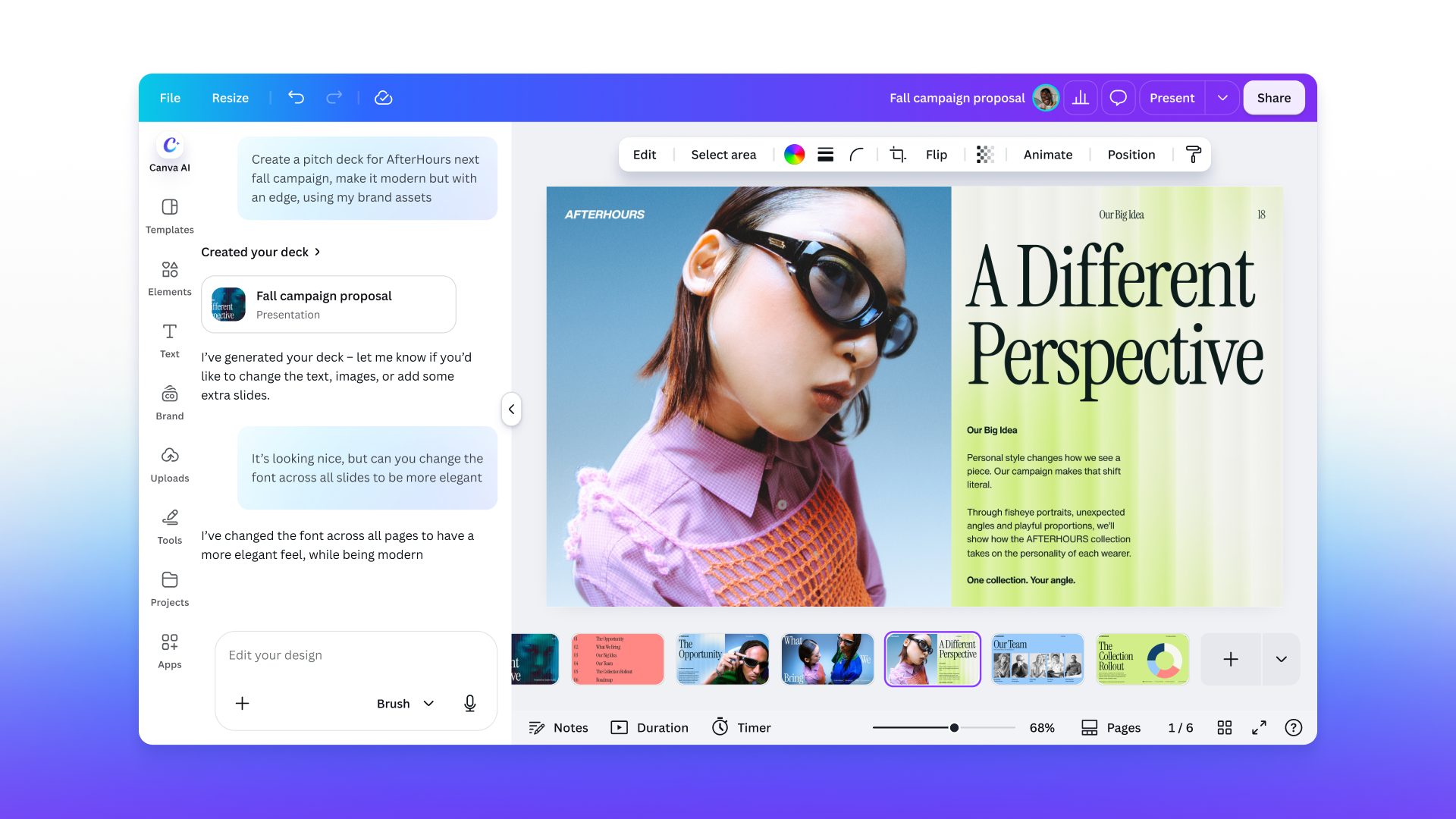
Canva introduced Brush on 29 October 2026 as a design-editing model inside Canva AI. For Canva Pro subscribers, it can power supported edits to an existing design, including changes across multiple pages. Canva says the output remains editable, and users can choose Brush in the Canva AI dropdown. That makes a familiar production problem worth testing: when a deck needs one visual rule changed everywhere, does the assistant apply that rule cleanly while leaving the message, imagery and hierarchy intact? WASSAI has not independently tested Brush. [1]
Give it one precise job
Duplicate a six-page presentation before editing. Pick a harmless training or proposal deck that you can share with the tool. Record its existing headline font, body font, text sizes, spacing and page count. Then ask Brush to change only the headline font across every slide, preserving body copy, photographs, page order and colours. A narrow request gives you a clear before-and-after comparison; asking for a complete redesign hides which decision helped and which damaged the deck.
Canva’s launch example shows a font request spanning a deck, and the company lists multi-page changes and format adaptation among current ways to try Brush. It says the model can inspect a design and revise elements through an iterative process. Those are product descriptions, not evidence that every slide or layout will come back correctly. Review each page at presentation size, especially long headings, tight text boxes and pages where type overlays a photograph. [1]
Check the parts you did not request
Create a simple review sheet with six rows, one per slide. Mark whether the headline changed, whether any line wrapped awkwardly, and whether body text, numbers or claims moved. Open the result in Canva’s editor and try adjusting one headline manually; Canva says Brush-created elements remain editable. If a page fails, correct that page and record the fix rather than issuing a broad prompt that may disturb the five pages already approved. [1]
Do not assume the model enforces your full brand system yet. Canva explicitly lists Brand Kit support, attachment references and improvements for image-heavy layouts as future work. Keep your approved fonts, colours, logo rules and source assets in the brief, then verify them yourself after the edit. For client-facing decks, have a second reviewer check spelling, figures, names and slide order against the original before exporting a PDF or presenting live. [1]
Judge saved work, not demo speed
Time the prompt, page-by-page review, repairs and final export. Compare that total with the manual font change in the duplicated deck. Canva reports faster editing in its internal tests, but your own measure is whether the deck reaches approval sooner without extra corrections. Start with a disposable copy and a single rule. If that passes, try a different format in a later test; one successful typography change is not proof that a whole campaign can be remixed safely in one click. [1]
Sources
- Canva: Introducing Canva Brush, a vision-language model for design · Published 2026-10-29; checked 30 October 2026.